Bionic Expands Support for Single Sign-On (SSO)
Logging into Bionic just got easier… and more secure! We’re excited to announce expanded support for Single Sign-On (SSO) on the Bionic platform.
This new SSO option enables you to use your company’s existing login credentials to access Bionic. This update is aimed at helping you streamline your access while strengthening security.
What is Single Sign-On (SSO)?
Single Sign-On (SSO) is an authentication technology that lets you log in once with a single set of credentials and gain access to multiple applications.
In practice, SSO means you can sign in through a centralized identity provider (IdP) – such as your company’s directory or SSO service – and then access various tools (like Bionic) without a separate username and password for each.
In Bionic’s case, this allows you to log in with your company’s login credentials instead of a separate Bionic password.
Why SSO is Important
For IT administrators and users alike, SSO brings significant benefits, especially in environments where multiple software tools are used daily:
🔒 Improved Security: With SSO, authentication is centralized. Fewer passwords mean fewer opportunities for password theft, and your organization can enforce strong security policies (like MFA) in one place. This reduces the risk of breaches and unauthorized access.
🧘 Reduced Password Fatigue: Users no longer need to remember yet another password for Bionic. By logging in with the same credentials they use for other corporate systems, there’s less frustration and password fatigue.
👆 Centralized User Control: SSO gives your IT team a single point of control to manage access. Provision or revoke a user’s access to Bionic via your central directory, which simplifies onboarding and offboarding.
These advantages are especially valuable for advertising agencies, where team members often juggle dozens of platforms for media planning, media buying, ad ops, trafficking, and other activities. SSO ensures that logging into Bionic is one less headache.
Bionic’s Expanded SSO Support
Bionic’s latest update greatly expands the range of identity systems we support for SSO. In technical terms, Bionic now integrates with a wide variety of Identity Providers (IdPs) using industry-standard SSO protocols (SAML 2.0 and OpenID Connect). Whether your organization uses a popular cloud IdP or an enterprise SSO platform, you can likely connect it to Bionic.
Supported Identity Providers
Bionic SSO integration works with dozens of providers. Major IdPs including Microsoft Entra ID (Azure AD), Okta, Google Workspace (Google Identity), Ping Identity (PingFederate/PingOne), OneLogin, Auth0, Duo, CyberArk, Salesforce, Oracle, Shibboleth, VMware Workspace ONE, ADFS, and many others are supported out-of-the-box.
Bionic supports both SAML and OpenID Connect connections, which covers most enterprise SSO solutions. This broad compatibility ensures you can integrate Bionic with your existing authentication setup – no need to change your IdP. For a full list of supported providers, see our Knowledge Base article on SSO.
Setting Up SSO in Bionic (For Admins)
Enabling SSO for your organization is a straightforward process, but it does require coordination with Bionic’s support team (since SSO must be configured on the backend for your account). Here’s how to get started:
1️⃣ Provide Your Domain to Bionic: An administrator from your organization (IT, Security, or your Bionic Org Admin) must request SSO access and supply your company’s domain to Bionic Support.
2️⃣ Connect Your Identity Provider: Bionic’s support team will work with your IT department to configure the connection between Bionic and your identity provider. This typically involves exchanging SSO metadata or client details and ensuring Bionic is set up as an approved app in your IdP.
3️⃣ Enable SSO for Users: Once the integration is configured and tested, all users in your domain can start using SSO to log in to Bionic. From this point on, users will have the option to use SSO on the login page. You can even request to enforce SSO-only login for your organization – meaning users must use SSO and can’t log in with a separate Bionic password – for heightened security.
For step-by-step guidance, see Get Set Up for SSO.
Logging in with SSO (For Users)
Once SSO is enabled for your organization, using it is simple and intuitive. Your team will no longer need to remember a separate Bionic password.

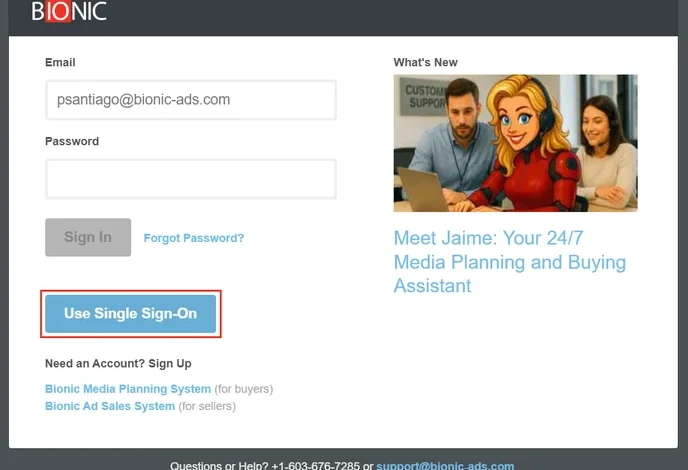
Bionic’s login page now features a “Use Single Sign-On” button for SSO users. To log in with SSO, enter your work email address on the login screen and click Use Single Sign-On (as shown above).
Bionic will recognize your email domain and securely redirect you to your company’s Identity Provider to authenticate. If you’re already signed in through your IdP in the same browser session, Bionic will log you in automatically without prompting you for credentials. If not, you’ll be asked to log in with your usual company username/password and any required MFA steps. After your IdP confirms your identity, you’ll immediately gain access to Bionic.
Tip: You can also launch Bionic directly from your IdP’s app portal if your IT department has set that up. For example, if Bionic is added as an application, you can simply click the Bionic icon in your dashboard to access Bionic without even visiting the Bionic login page.
Getting Started with SSO on Bionic
Bionic’s expanded SSO support is now available. Your Bionic account has already been enhanced with this new capability as a free software upgrade.
If you’re interested in enabling SSO, simply reach out to your Bionic Customer Success Manager or Bionic Support to discuss next steps. Our team will help you get SSO up and running, so you can start enjoying safer and simpler logins.
For more detailed instructions and troubleshooting tips, see Log in with Single Sign-On.